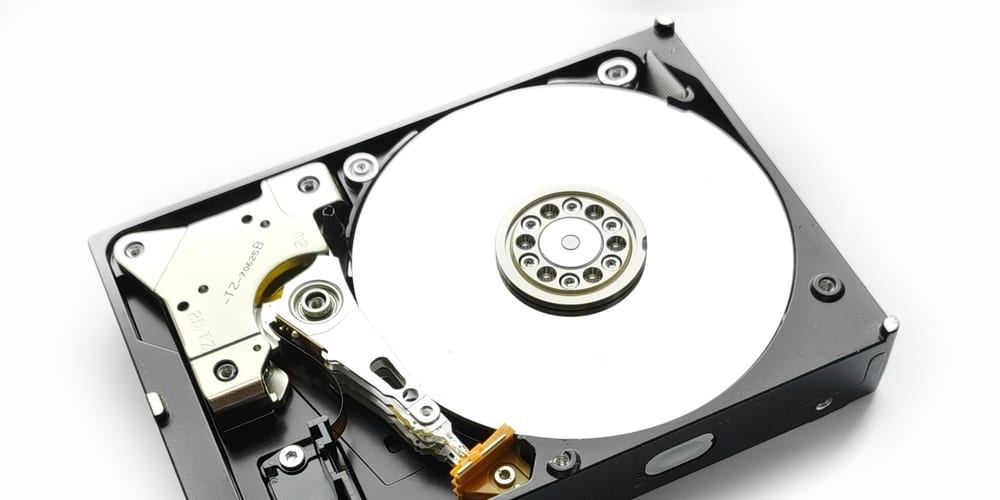
Photo: the open platter and actuator arm of a hard disk drive. Hard disk drive platter, Western Digital Caviar 250Gb WD2500AAKS.jpg by Mk2010, CC BY 4.0.
The Revo junk files cleaner ignores every file touched in the last twenty-four hours, and that limit is switched on out of the box. Revo says why in its own manual: some junk and temporary files are in use during the scan, so leaving them alone is safer than racing the program that owns them.
Two settings that decide whether you free any space
Both live behind the Options button in the toolbar, or under the Tools menu, on the Junk Files Cleaner tab.
- Ignore files accessed last 24 hours. On by default, for the reason above. Turn it off and the scan finds more, including things a running program is still writing to.
- Delete files to the Recycle Bin. Tick it and every file the scan removes is moved rather than erased. Revo’s manual is blunt about the consequence: this will not increase the free disk space until you empty your Recycle Bin.
That second one is the trap. You run a cleaner to reclaim a few gigabytes, the scan reports a few gigabytes, the drive gauge in Explorer does not move, and nothing has gone wrong. The files are sitting in the bin, still on the disk, waiting for a second action nobody told you about.
What the Revo junk files cleaner scans, and what it will not touch
It works from a list of patterns rather than a fixed idea of what junk is. Each pattern is a file mask, most of them extensions, and each has a checkbox. Uncheck a pattern and the scan skips it. There are Add and Remove buttons under the list and wildcards ? and * are accepted, so you can teach it about a folder your own software keeps filling. A Set Default button throws your patterns away and restores the built-in ones.
There is a second list on the Exclude tab, this one of directory paths. Same logic in reverse: a path with a check mark is scanned, a path without one is skipped. If you keep a scratch folder full of files that look like junk and are not, that list is where you protect it.
Drives are selected per scan. Only the drives you tick get read.
The overlap with what Windows already does
Windows ships Storage Sense, which Microsoft describes as clearing items you do not need, such as temporary files and things sitting in the Recycle Bin. It is off by default, and it goes after the same category Revo does. I would not run Revo’s cleaner expecting it to find a category Windows has never heard of. What it gives you instead is the pattern list and the exclusion list, which the Windows tools do not expose in the same way, plus a result list you can walk file by file with Open, Properties and Open containing folder on each row before you commit.
That is the honest case for it. Not a bigger haul, more control over what goes.
What to do when a file will not delete
Some rows survive the Delete button. The usual cause is the plainest one: a program is holding the file open, which is the same reason the twenty-four hour filter exists in the first place. Close the application that owns the file, or reboot and scan again before you go looking for a deeper explanation.
Junk Files Cleaner is part of the free edition, one of the eight cleaning tools Revo lists on the free product page, so none of this sits behind the Pro upgrade. The freeware user’s guide covering it carries a document date of 6 December 2022 while the current free release is 2.7.0 from 12 May 2026, so the wording of a button may have moved since the manual was written even where the behaviour has not.
Sources
- Revo Uninstaller, Revo Uninstaller 2 User’s Guide, freeware edition
- Revo Uninstaller, Revo Uninstaller Free product page
- Revo Uninstaller, Version History
- Microsoft, Manage drive space with Storage Sense
- How to Find the Router IP in Windows 11: Five Places
- How to Change the Revo Uninstaller Language in Version 2
- Download Images and GIFs From Pinterest: Two Objects
- Multiple Instagram Accounts: Add One, or Create a New One
- How to Make a Spotify Playlist Private and Public Again
- Four Ways to Share a Spotify Playlist and When to Use Each