Someone opens a playlist you were sure nobody could see, and it plays for them, because the switch that will make a Spotify playlist private is not the one you used.
Spotify offers three states and most guides describe two. Here they are side by side, because the gap between the middle row and the bottom row is where people get caught.
| State | Shown on your profile | Findable in search | Opens for someone holding the link |
|---|---|---|---|
| Public and published | Yes | Yes | Yes |
| Public, removed from profile | No | Yes | Yes |
| Private | No | No | No |
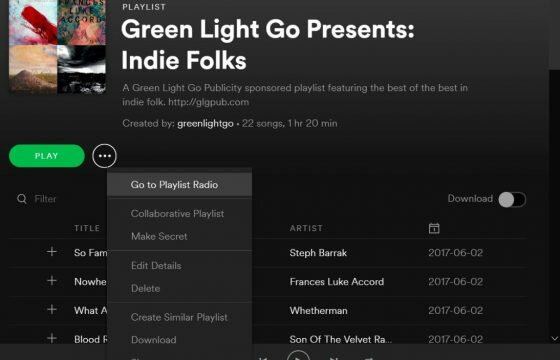
The control that will make a Spotify playlist private
Open the playlist, take the menu at the top of it, and choose Make private. To reverse it, the same menu offers Make public.
Spotify’s description of the private state is unusually blunt for a help page: nobody can access it, even with a link to it or by searching for it by name. That is a real lock, not a listing preference.
The wording matters because it changed. The old menu items were Make Secret and Make Public, and a lot of writing still uses them. If you are hunting for Make Secret and cannot find it, you are on a current build and the item you want is Make private.
The control that does something weaker
Separately there is Remove from profile, alongside a settings toggle that governs new playlists. On mobile it sits under Settings and privacy, then Privacy and social, then playlist visibility. On desktop it appears in Settings under the social section, worded as publishing new playlists on your profile.
All of that governs one thing: whether the playlist is displayed on your public profile. A playlist removed from your profile is still public. The link still works for anyone who has it, and the playlist can still surface in search, even if the odds are low because Spotify’s results favour older and heavily played lists.
Both controls are legitimate. They answer different questions. Remove from profile answers “I do not want this listed under my name”. Make private answers “I do not want anyone to reach this”.
If your reason for hiding a playlist involves a specific person not finding it, only the second one is enough.
Why the default is the whole problem
In the spring of 2026 a playlist belonging to a public figure was picked up online and turned into a news story. Nothing was leaked and nothing was hacked. The playlist was public, sitting on a public profile, because that is how Spotify creates every playlist unless you tell it otherwise, and somebody went and opened it.
That is the part worth carrying away. Public is the default state of every list you make, and the default is doing the thing you would have to opt into anywhere else. No lock had to be picked, because no lock was set.
What happens to people who already had access
Making a public playlist private pulls it out from under everyone, including existing followers. It stops appearing for them and their saved copy of it goes dark.
Nothing warns you before you flip the switch. On a collaborative playlist, or one a group of friends treats as shared property, going private removes their access silently. Say so first if that matters to anyone but you.
Reversing it restores the playlist but not necessarily the followers, who may have removed the broken entry from their library in the meantime.
The seven day rule on shared links
Spotify’s playlist documentation attaches a seven day life to links used to bring specific people into a playlist. The clock runs on the invitation, not on the access: someone who opens the link inside the window keeps their place afterwards, and someone who tries later gets an unavailable page and needs a fresh link.
Two consequences worth planning for. A link posted somewhere permanent stops working as an entry point after a week, so a collaborative playlist advertised in a pinned message will quietly stop accepting new people. And regenerating the link takes seconds, so an expired invitation is an inconvenience rather than a lockout.
Setting the default so you stop thinking about it
If most of what you make should not be on your profile, change the default rather than remembering to fix each list. The playlist visibility toggle on mobile and the publishing switch on desktop both control what happens to new playlists from that point on.
It does not act retroactively. Playlists already published stay published, so turning it off today leaves everything from before today exactly where it was. Going back through the old ones is a manual job, and on an account with years of lists it is the tedious afternoon nobody budgets for.
Sources
- Spotify, Playlist privacy and access
- Spotify, Collaborative playlists
- Spotify Community, Secret playlists are not private
- Spotify Community, Seven day limit on a collaborative playlist link
- Four Ways to Share a Spotify Playlist and When to Use Each
- How to Upgrade to Spotify Premium and Choose Who Bills You
- Go Offline on Spotify: Two Switches That Do Different Jobs
- Remove a Song From a Spotify Playlist and Undo a Mistake
- Delete a Playlist on Spotify and Get It Back Within 90 Days
- How to Find Friends on Spotify Without a Friends List