A Spotify profile picture takes four taps on a phone and four clicks plus a Save button on desktop, and the phone route is the faster of the two by a wide margin.
The claim that avatars can be set only from a computer has been wrong for years. Spotify’s own instructions now cover phone, tablet, desktop app and web player, and the mobile screen is the one Spotify documents first.
Setting a Spotify profile picture from the phone
Tap your picture at the top of Home, then View Profile, then Edit, then Change photo. Pick an image from your library and the change syncs to every other place you use the account.
Two practical notes that the official page does not carry. Photos coming straight from a modern iPhone camera are often in HEIC format, which is a common cause of an upload that appears to work and then leaves the old picture in place; converting to JPEG in the Photos app first avoids the round trip. And Spotify pushes the new image out at its own pace, so a phone that shows the update immediately and a desktop that does not is normal for a few minutes.
Setting it from desktop or the web player
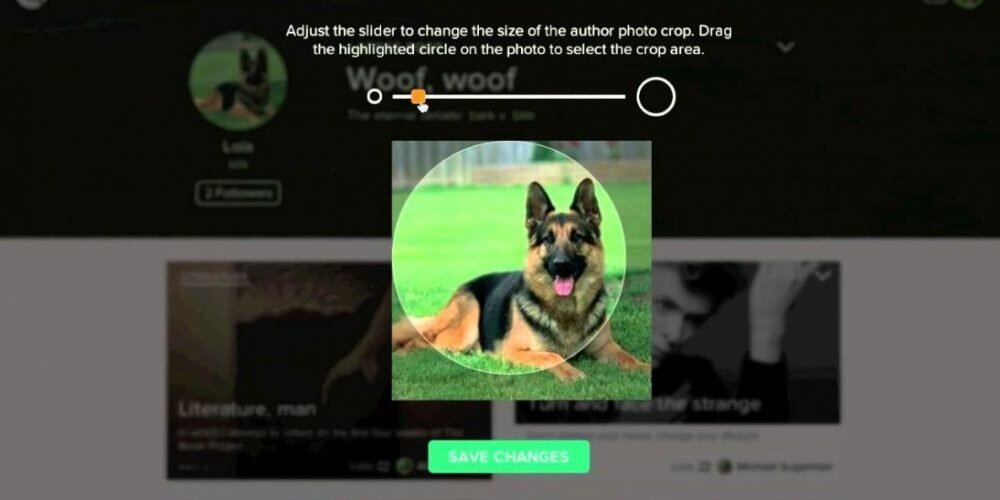
Click your picture at the top, choose Profile, then click the picture itself. Choose the file, then click Save. The Save step is easy to miss; the preview updates before you commit, which makes it look finished when it is not.
The desktop path exists in both the installed app and the browser player. Spotify documents the same sequence for the display name on that screen, so if you are renaming yourself as well, both fields are edited in one visit rather than two.
Taking the picture off again
Both routes carry a removal option. On the phone it appears as Remove current photo inside the same Change photo screen. On desktop it is Remove photo, followed by Save.
If neither option is there, the cause is almost always Facebook, and Spotify says so itself in two places. A connected account displays the Facebook picture by default, and if you “can’t see the option to remove, you may have your account connected to Facebook”. Spotify also warns on the same page that a Facebook picture can take up to a few days to appear on the Spotify side.
What Spotify does not document is the way out. Its community FAQ, which is staff guidance rather than a help page, puts the disconnection under the social settings and describes it as slow rather than instant. Treat the delay as expected and do not repeat the step because nothing changed within the hour.
The one restriction Spotify puts in writing
Attached to both sets of instructions is a line about rights: make sure the picture does not violate copyright, trademark, or personal image rights. That rules out the habit of pulling an artist promo shot or a film still out of an image search and setting it as your avatar. It is a rule with teeth on a music platform, where the rights holders in question are the same companies Spotify licenses from.
Pick something you took, something licensed for reuse, or the default silhouette. The default is a legitimate choice and the removal button exists precisely so you can go back to it.
Sources
- Spotify, Your Spotify profile picture
- Spotify, Username and display name
- Spotify Community, Disconnect Facebook from Spotify FAQ
- 9to5Google, Spotify app for Android and iOS can change your profile picture
- How to Make a Spotify Playlist Private and Public Again
- Four Ways to Share a Spotify Playlist and When to Use Each
- How to Upgrade to Spotify Premium and Choose Who Bills You
- Go Offline on Spotify: Two Switches That Do Different Jobs
- Remove a Song From a Spotify Playlist and Undo a Mistake
- Delete a Playlist on Spotify and Get It Back Within 90 Days