Deleting learned words and wiping app storage both clear the Gboard search history you are seeing, and one of them costs you your themes and every other setting while the other costs you nothing. Google documents both. Having read both procedures, I would treat the narrower one as the default and the wider one as a repair tool, which is the reverse of what most guides to this topic recommend.
Three things get called Gboard search history
Work out which one is bothering you before you delete anything, because they live in different places and only one of them has a delete button.
Words the keyboard learned from you. Typed once, suggested forever. Google’s description is that Gboard saves the words you type to help with spelling and to predict searches, and that these words are saved only to your device.
Text you copied. The clipboard strip at the top of the keyboard. Google says the clipboard clears its history shortly after you last use it, and that this does not apply to pinned text. So an item you did not pin will go on its own, and an item you pinned will not.
Everything else Gboard holds. Themes, dictionaries, per-language settings, caches. There is no selective delete for this. There is one switch that removes all of it.
Deleting the learned words
This is the one to reach for, and it is documented for Android:
- Open any app you can type in, such as Gmail.
- Tap into a text field so the keyboard appears.
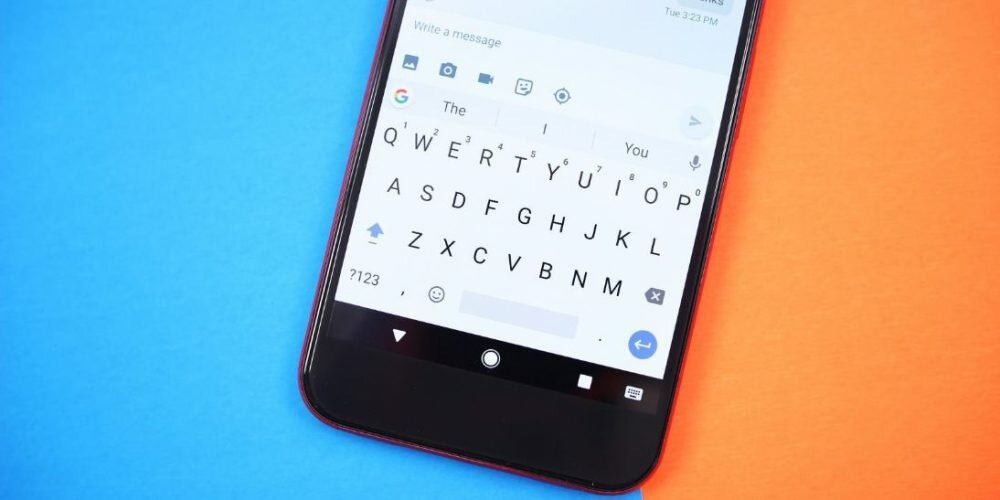
- Tap Settings at the top of the keyboard.
- Tap Dictionary, then Delete learned words.
- Google asks you to type a number it shows you, to confirm you meant it.
- Tap Ok.
On an iPhone or iPad the route is shorter: open the Gboard app, then Keyboard settings, then Clear my dictionary, then Ok.
The confirmation number is not decoration. Deleting learned words is not reversible, and Google put a small speed bump in front of it for that reason.
When the wide reset is the right call
If the problem survives the dictionary wipe, or the keyboard is behaving oddly rather than remembering too much, Google’s own troubleshooting sends you to the Android app settings: open Settings, tap Apps and notifications or Apps, then Gboard, then Storage and cache, then Clear cache. If that does not help, Clear data or Clear storage.
Google describes the result of that as resetting Gboard to its default state. Read that as your themes, your clipboard pins, your dictionary and your language setup all going at once. It is the tool the old guides recommend as the only option for clearing history, and the reason to know about Delete learned words is so you never need it for that job.
What is not on your phone
The words are local, and Google says as much: saved words are not sent to Google. Speech is a separate story. Google states that snippets of your audio input on Gboard are sent to and stored by Google to improve speech recognition, that they are not kept beyond 18 months, and that they are not associated with you or your account, which also means you cannot go and delete them.
If what you are chasing is a record of searches rather than suggestions on a keyboard, none of the above touches it. Searches you ran through Google are held in your Google Account, not in Gboard, and clearing the keyboard will not remove one of them.
Sources
- Gboard Help, Fix problems with Gboard, Android
- Gboard Help, Fix problems with Gboard, iPhone and iPad
- Gboard Help, Copy and paste sections of text with Gboard
- Gboard Help, Learn how Gboard gets better
- Download GIFs from Tumblr and Get an Actual GIF Back
- Change the Gmail Profile Picture on Android in Two Routes
- How Much Free Space on Dropbox Do I Have, and What Eats It
- Set an Android Keyboard Wallpaper Google Never Documented
- Add Another Google Drive Account in WhatsApp: 15 GB Each
- Change the Netflix Subtitle Font Where It Actually Sticks