Google documents exactly six words of the Android keyboard wallpaper procedure, and none of them cover using your own photo. The help page says to open Theme, pick a theme, and tap Apply. Custom images, key borders and the brightness slider are all in the app and none of them are in the documentation.
That gap is worth naming up front, because it tells you which instructions to trust when they disagree.
Two ways into the Android keyboard wallpaper screen
Through your phone’s Settings. This is the route Google publishes: open the Settings app, tap System, then Languages and input, then Virtual keyboard, then Gboard, then Theme.
Note where that sits. Guides written before Android 9 tell you to tap Language and input on the main Settings screen. On current Android that entry moved under System, which is the single reason so many of those guides read as broken. The destination did not change. One level of nesting did.
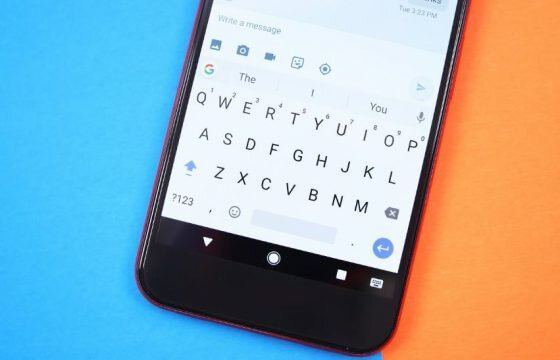
Through the keyboard itself. Open any app you can type in, tap into a text field, tap Settings on the keyboard’s top row, then Theme. Fewer taps, no hunting through Settings, and the same screen at the end. Manufacturers reshuffle the Settings tree between Android versions and skins. They do not reshuffle the keyboard’s own menu. Use this one.
The part Google leaves out
Once you are on the Theme screen, the custom photo route is a third-party procedure in the strict sense: the app offers it, Google’s Android help page does not describe it. Expect a section for your own images alongside the supplied themes, a picker that hands you your gallery, a crop step, and a brightness control before you confirm.
The asymmetry is odd enough to point out. On iPhone and iPad, Google says outright that you can give Gboard a background like a photo or a colour, and tells you to pick a theme or photo. The Android page for the same feature says only to pick a theme. Same app, same capability, one platform documented and one not.
The brightness control is the one that matters. A photograph behind a keyboard competes with the letters on it, and the slider exists to push the image back. If the keys are hard to read after you apply the theme, that is the fix, along with the key borders toggle, which draws an outline around every key.
I would test any wallpaper against a dark app and a light one before settling. Gboard renders the same theme in both, and an image that reads well over a white background can swallow the keys over a black one.
Where the theme does and does not follow you
The theme belongs to Gboard, not to your phone and not to the app you are typing in. Change it once and it appears everywhere the keyboard appears, in messages, in the browser, in search fields. Switch to a different keyboard app and it is gone, because it was never a system setting.
Two limits follow from that. A theme does not travel to a new phone by itself. And clearing Gboard’s storage removes it, along with the learned dictionary and every other setting, since Google describes that action as resetting Gboard to its default state.
The Google-supplied themes and the wallpaper route both live in the same place, so if the custom image is not working out, the fallback is one screen away rather than a reinstall.
Sources
- Gboard Help, Change your keyboard theme, sound, or vibration, Android
- Gboard Help, Fix problems with Gboard, Android
- Gboard Help, Change your keyboard theme, sound, or vibration, iPhone and iPad
- Download GIFs from Tumblr and Get an Actual GIF Back
- Change the Gmail Profile Picture on Android in Two Routes
- How Much Free Space on Dropbox Do I Have, and What Eats It
- Clear Gboard Search History Without Wiping Your Themes
- Add Another Google Drive Account in WhatsApp: 15 GB Each
- Change the Netflix Subtitle Font Where It Actually Sticks